CoachRx + Cronometer: How This Integration Simplifies Nutrition Coaching
December Community Call Recap Led by OPEX and CoachRx CEO, Carl Hardwick
If you have ever tried to coach nutrition off messy screenshots and half-completed food logs, you know how hard it is to give clear guidance. The CoachRx x Cronometer integration is built to fix that problem so you can finally see what clients eat, how they feel, and how it all connects to training and recovery, in one place.
Meet Cronometer and the new partnership
Cronometer is a Canadian nutrition tracking company based in Revelstoke, BC. The consumer app has been around since 2012, and in 2019 they launched Cronometer Pro so coaches and health professionals could see client diaries, device data, and reports in real time.
What matters more is what the app does:
Detailed, accurate nutrition tracking for clients
A verified database that tracks up to 88 nutrients
A Pro dashboard where you can invite clients, see diaries, and run reports
CoachRx chose to integrate with Cronometer so coaches can connect a client account once, then watch real intake flow straight into the CoachRx calendar and lifestyle trends.
Why CoachRx partnered with Cronometer
CoachRx CEO Carl Hardwick, gave four clear reasons they chose Cronometer as their primary nutrition partner: reputation, platform, integration, and value.
1. Reputation and data integrity
The biggest point was trust in the food database.
Back in the early 2010s, many popular tracking apps had serious quality issues. Coaches would see things like:
A client logs “cooked chicken breast”
The app shows dozens of versions of that entry
One entry lists 145 grams of protein where it should be closer to 200 grams for the amount eaten
If you base macro coaching on bad numbers, your advice is off from day one.
Cronometer solved this for many coaches. They:
Use only verified database entries, not random user-submitted foods
Pull from sources like the USDA and NCC (University of Minnesota)
Track a full nutrient profile instead of just calories and macros
Because of that, CoachRx trusted they could connect Cronometer data to coaching decisions without second-guessing every entry.
2. A client-friendly platform
On the client side, Cronometer is straightforward and simple to use. Searching, logging, and reviewing food is clear, and the app does not feel cluttered.
On the coach side, Cronometer Pro gives you:
A web dashboard to see each client’s diary
Live access to what they logged and when
Reports you can export, print, or discuss on calls
That combination made it a strong fit for the type of long-term coaching CoachRx supports.
3. Deep integration with CoachRx
The third reason was how cleanly the two systems talk to each other.
Once a client:
Creates a Cronometer account
Connects it to their CoachRx profile through the mobile app
CoachRx can pull in:
Calories
Protein, carbs, fats
Fiber
Inside CoachRx, you can set nutrition prescriptions in the lifestyle calendar, and compliance updates automatically based on what the client logs in Cronometer. The client does not need to re-enter macros in CoachRx or send screenshots of their diary. The data just flows.
4. Extra value for coaches and clients
The integration is built to reduce friction for everyone:
Clients track food once
Coaches see compliance and trends in the same place they program training
It also supports “passive tracking,” where you ask a new client to log their normal eating for 3 to 7 days without any targets. You then review that data in CoachRx trends, compare it to energy, sleep, and recovery, and set a plan from reality instead of a calculator guess.
Inside CoachRx: how the Cronometer integration works
Once a client has linked Cronometer to CoachRx, you start working from the CoachRx side.
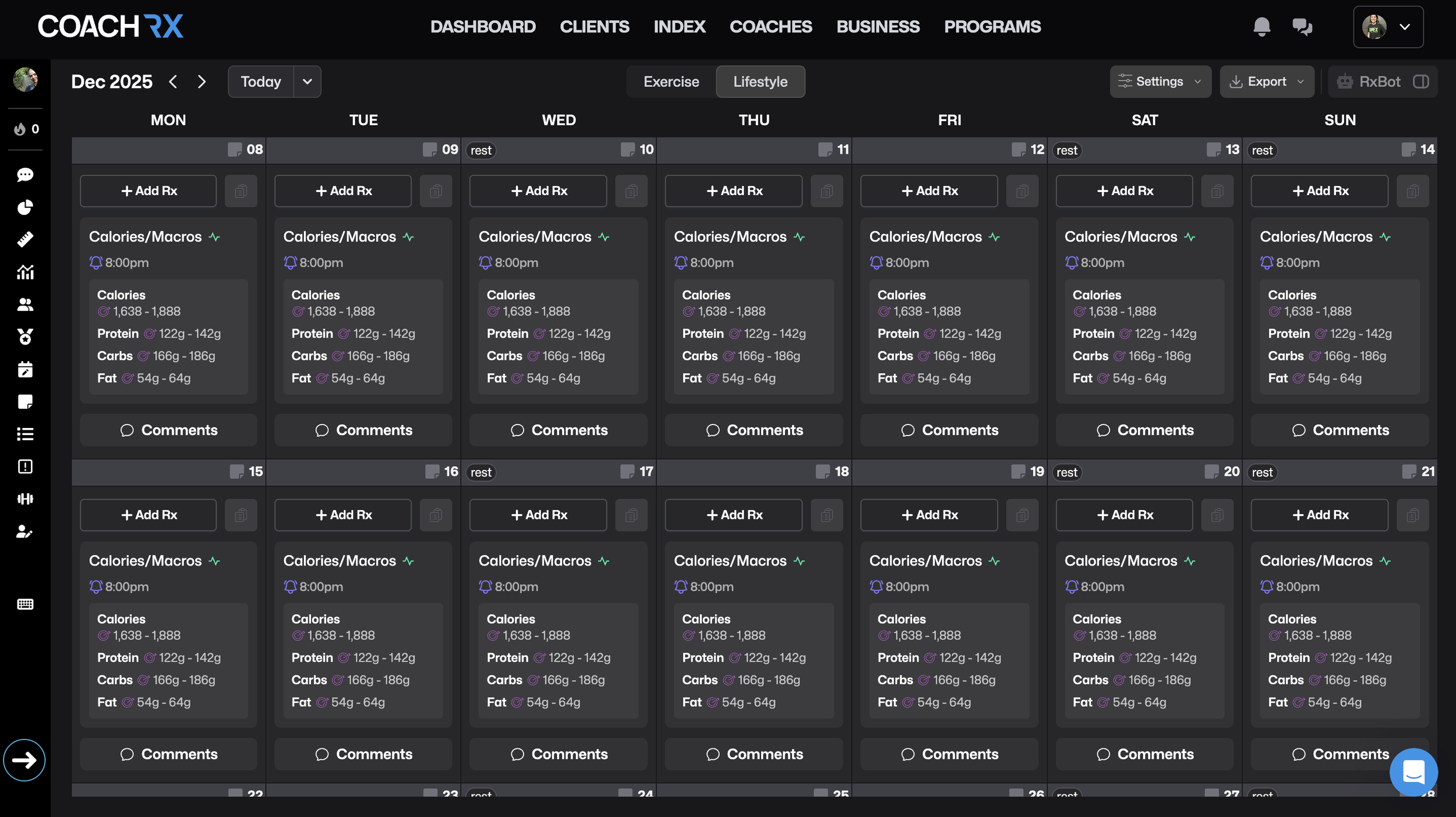
Setting macro prescriptions in the lifestyle calendar
Nutrition prescriptions in CoachRx live in the lifestyle calendar.
From there, you can:
Add a lifestyle item
Open the macro calculator
Either use the built-in calculator or enter your own macro targets
A key detail: the calorie target is locked. It is calculated from the protein, carb, and fat amounts you prescribe. Fiber does not affect calories, although you can still set a fiber target.
You can then:
Make that macro prescription recur daily or weekly
Set it for up to 12 weeks at a time
Those targets then appear on the client’s side in CoachRx. Once Cronometer is connected, actual intake starts filling in against those goals automatically.
Daily views and lifestyle trends
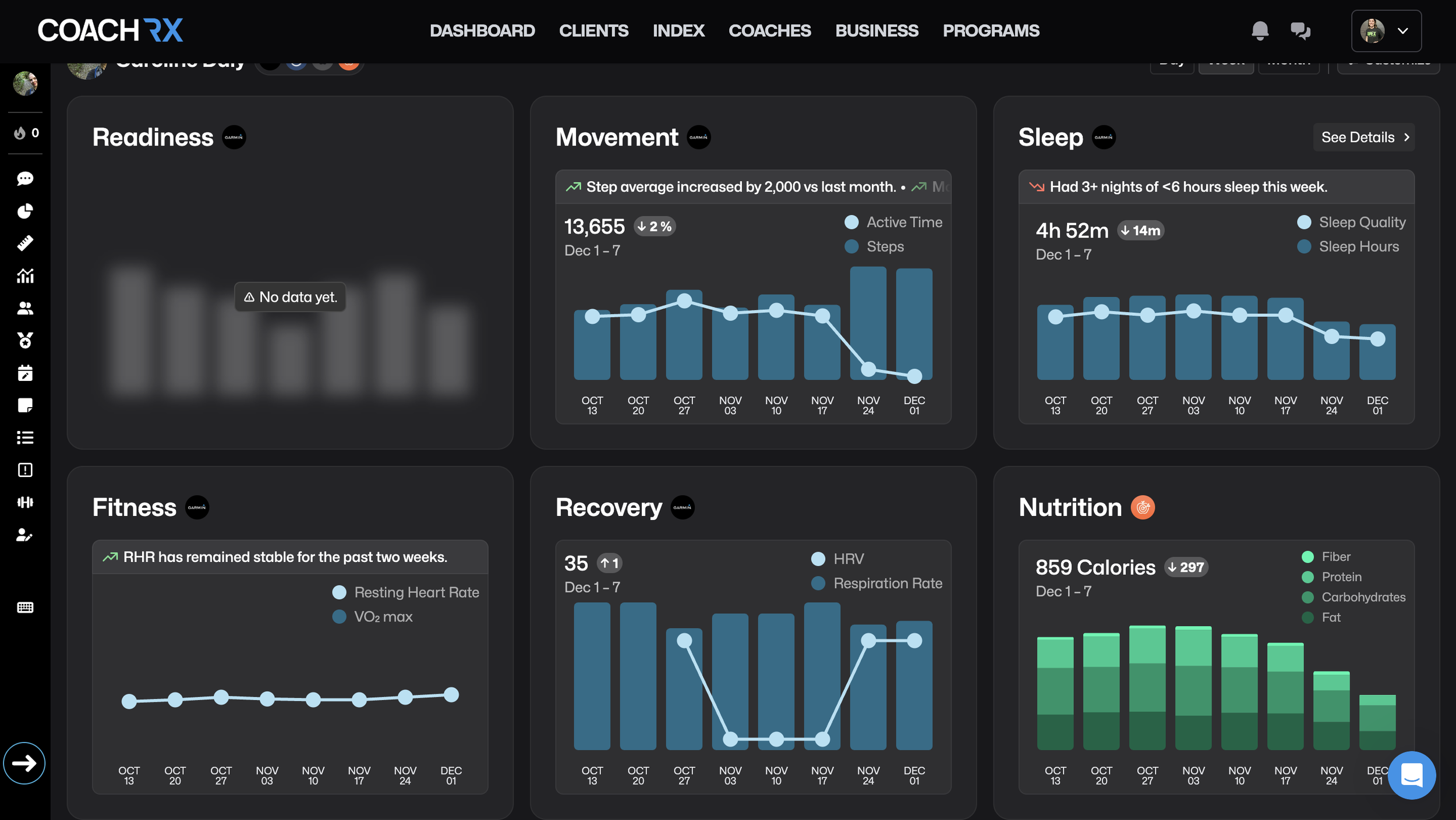
On the client calendar in CoachRx, a little green data line on a nutrition prescription shows that the day is connected and receiving data from a device or app. For macros, that device is Cronometer.
When you open a day, you might see something like:
Calories within target
Protein slightly over target
Carbs a bit low
Fats right on target
From there, you can jump into lifestyle trends to see averages and changes over weeks. You can switch weeks using the selector at the top of the view.
A powerful example from the call:
One client works in tech with odd hours and a global team
Before coaching, she was eating under 1,200 calories per day on purpose
She felt “hangry” and her husband noticed this as well
Once she connected Cronometer, her coach could see:
Very low calories
Low protein and carbs on tough days
Notes like “today was a struggle” in her CoachRx check-ins
With real numbers in front of them, it became clear that mood and energy problems could potentially be tied to low intake, not lack of effort
Using passive tracking to get a baseline
You do not have to start with a prescription.
Many coaches ask new clients to:
Track everything in Cronometer for 3 to 7 days
Change nothing about how they eat
Focus only on being honest and complete
In CoachRx, you then look at lifestyle trends without any macro goals attached.
You might:
Enter details into the macro calculator and see a “theoretical” maintenance of 2,100 calories
Compare that to real Cronometer data averaging around 1,400 calories
Instead of jumping straight to 2,100, you can take a smarter path and gradually bring them up, based on actual intake.
Focusing on one habit at a time
Not every client is ready to track full macros.
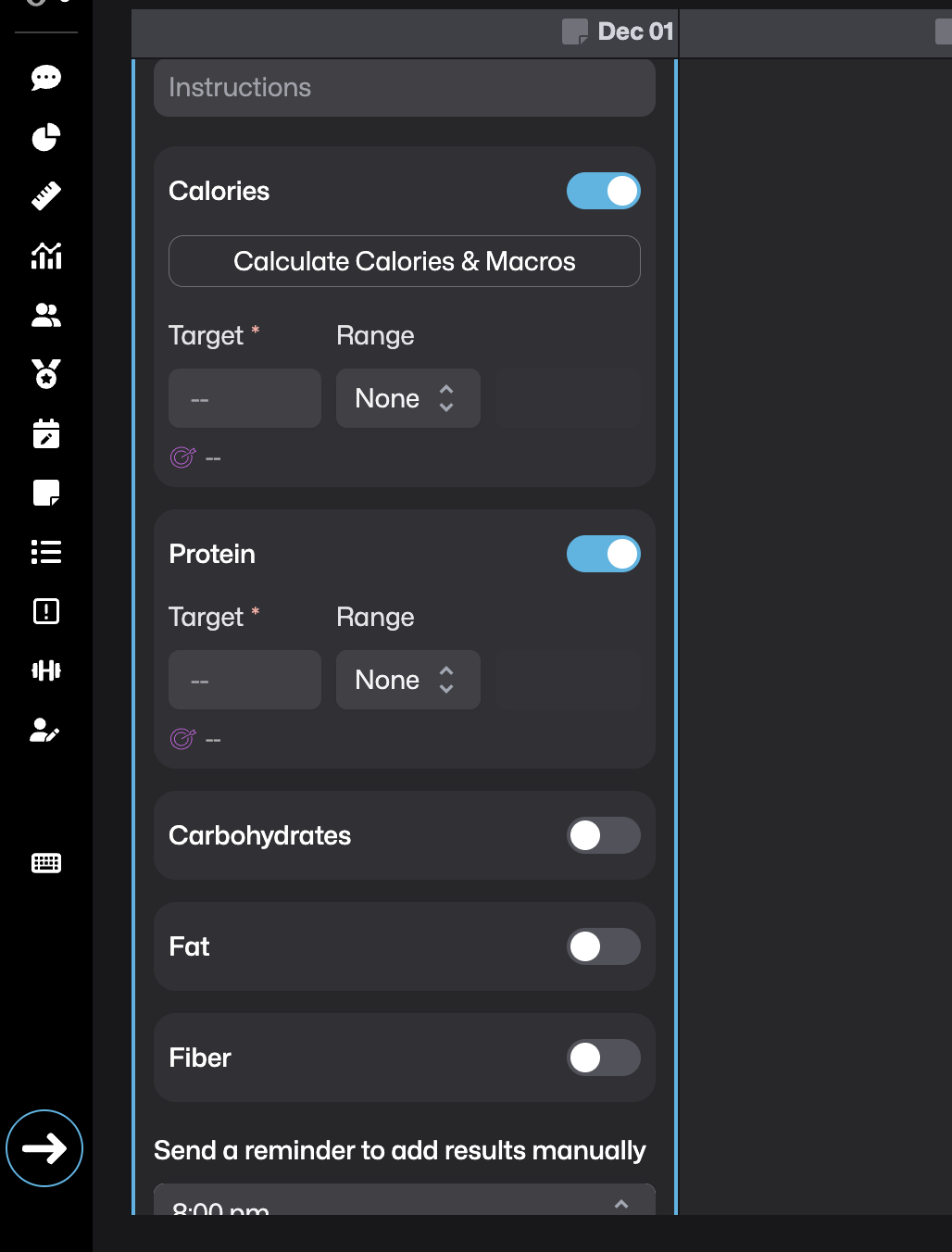
CoachRx lets you hide certain metrics from the client while still pulling data from Cronometer. When you create a macro prescription, you can:
Turn off carbs and fat and focus only on protein
Or focus only on fiber for a few days
Or hide calories if you want to avoid number obsession
Clients then see only what you want them to focus on, for example grams of protein, while you still see the full picture in your coach views.
This matches a compounding habits approach and keeps early wins simple.
Meal planning options inside CoachRx
Some clients do better with explicit meal ideas, not just macro targets. CoachRx gives you two main ways to handle that.
Option 1: Upload simple PDF meal plans
If a client is eating the same meals on repeat, such as a physique competitor in the final stretch before a show, a simple PDF works well.
You can:
Build the meal plan in your favorite tool and export as a PDF
Open the client’s Notes & Documents section in CoachRx
Upload the PDF, label it clearly, for example “Week of 12/1”
Toggle Show to client
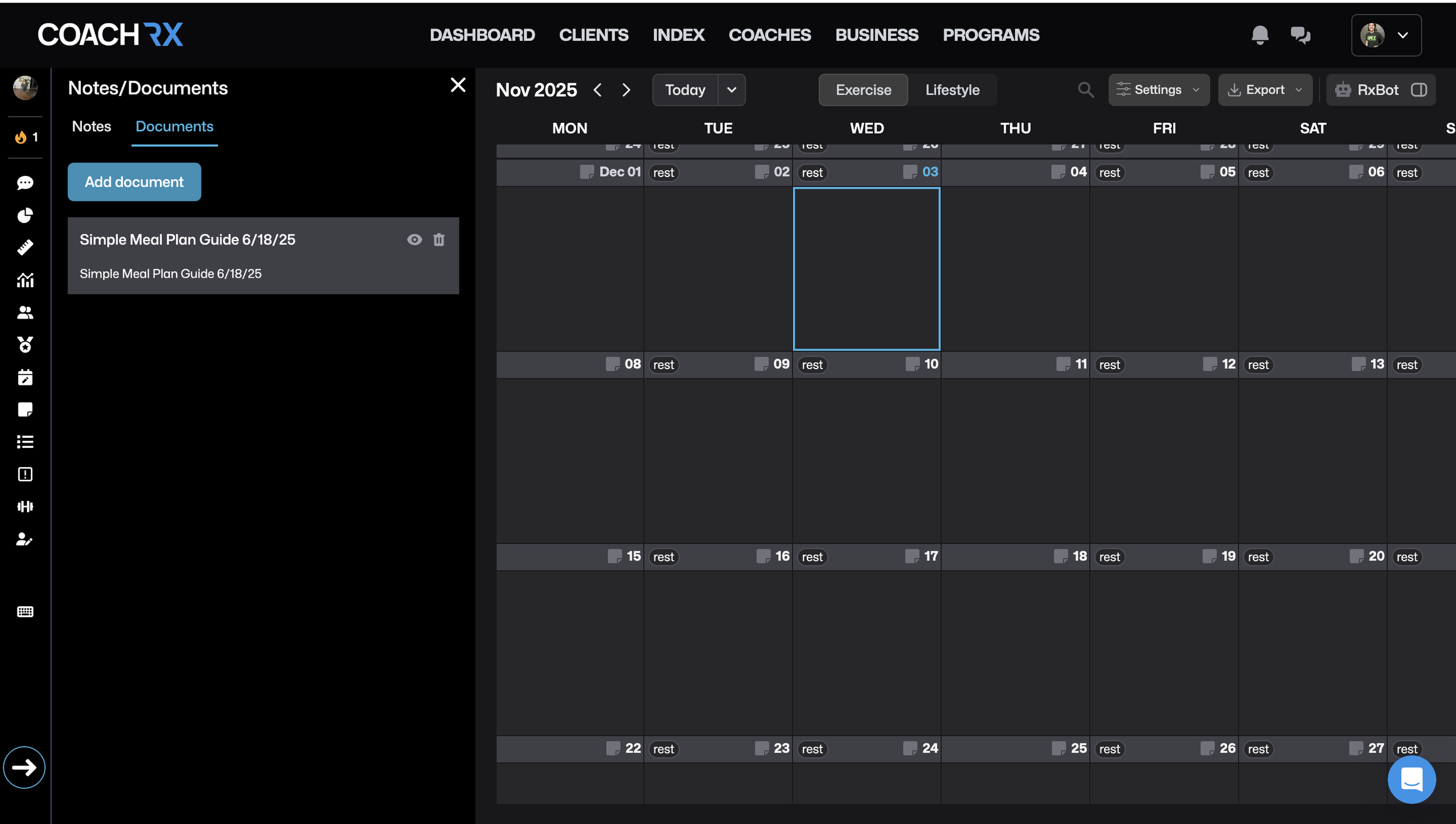
The client can then view the plan whenever they need it. You can upload one file per week if their plan changes over time.
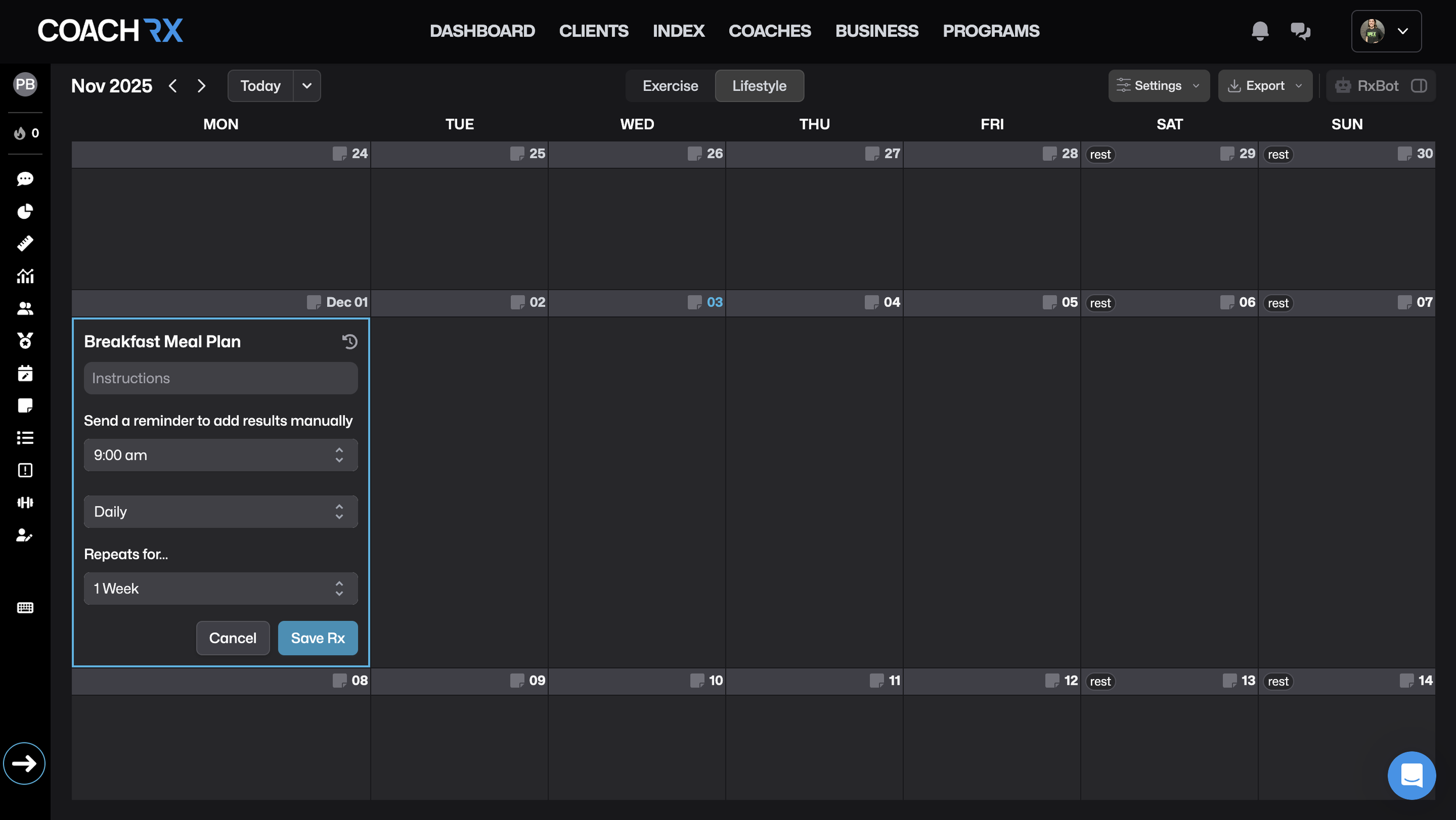
Option 2: Build meal-plan actions into the calendar
For more interactive guidance, you can create lifestyle items that represent meals.
The flow looks like this:
In Lifestyle RX (your index of lifestyle items), add new items such as “Breakfast meal plan,” “Lunch meal plan,” and “Dinner meal plan.”
Set each one under the Nutrition category and mark it as a yes/no item.
On the client’s calendar, add “Breakfast meal plan” to each day you want it.
In the instructions field, either:
Give exact foods and amounts (for example 50 g oats, 2 eggs plus 3 egg whites), or
Give macro targets for that meal (for example 30 g protein, 45 g carbs).
Make it recur daily if this is the same for a whole week.
You can repeat the process for lunch and dinner.
This keeps all the nutrition guidance in the same place as training and lifestyle tasks, which makes it easier for clients to follow.
What Cronometer Pro adds for coaches
On the Cronometer side, the Pro platform turns a regular consumer app into a coaching tool.
Adding clients and giving them Gold features
Cronometer Pro is a web dashboard where you:
Add clients individually by email
Or upload a CSV file to invite many at once
If a client already has a Cronometer account, you simply invite the email they used to sign up. They get a request to share their diary with you. If they are new, the email guides them to create an account and download the app.
Every client on your Pro list automatically gets access to Gold, Cronometer’s premium version, for as long as they stay on your list.
Photo logging for fast, realistic food tracking
One of Cronometer’s newest features is photo logging, which supports more relaxed tracking.
Here is how it works:
The client opens the app and taps to add food
They take a photo of the meal, such as a wrap filled with several ingredients
The app scans the photo, identifies foods, and estimates amounts
The list of foods appears, and the client can add them to the diary
Cronometer held back on launching this until they were happy with accuracy. Since their reputation is built on clean data, they did not want photo logging to turn diaries into guesses.
The feature uses their verified database, not random user entries, which keeps data quality high.
The diary, notes, and wearables
From the Pro dashboard, you see a client’s daily diary.
You can:
View all foods logged for each meal
Add foods manually by searching, for example “chicken breast”
See full nutrient breakdowns, up to 88 nutrients per item
Clients can also:
Log exercise directly into Cronometer
Sync wearables like Apple Health, Garmin, and Oura Ring so activity, heart rate, and other data stream in
Track biometrics such as weight
Both clients and coaches can add notes to a day. A client might write “super tired, slept badly,” and you can reply there, or just use it as context when you meet. There is also a photo upload option inside the diary that some coaches use to share exercise demos or stretches.
Cronometer includes a messaging feature as well. If you prefer to keep communication inside CoachRx, you can turn Cronometer messaging off in your Pro account settings.
Targets, profiles, and what clients see
Each client profile in Cronometer lets you set:
Age, sex, height, weight
Activity level, if they are not using a wearable
Macro targets and energy equations
Weight goals and rate of loss or gain
You can adjust how carbs are tracked, for example net carbs or total carbs. Since CoachRx only reads total carbs from Cronometer, coaches on the call recommended switching clients to total carbs to avoid confusion.
A big coaching feature is visibility control. You can hide complex nutrient data from clients and only show:
Calories
Protein, carbs, fats
Or an even shorter list
Even if you limit what the client sees, you still see full nutrient data and can pull it into reports.
Macro scheduler for advanced athletes
For clients whose targets change by day, such as athletes with hard training days and rest days, Cronometer has a macro scheduler.
You can:
Create templates with different macro targets
Assign templates to specific days of the week
The client just opens the app and sees updated targets for that day, without you re-writing anything manually.
Deep nutrition reports that tell the full story
Cronometer’s Nutrition Report pulls all the tracking together.
From the Pro dashboard you can:
Choose a date range, for example the last 7 days
Decide whether to include all days or only days marked “complete”
Generate a PDF that includes your logo and the client’s name
The report shows:
Summary nutrition scores like bone health, metabolism support, women’s or men’s health, or plant-based diet, depending on what you choose to show
Average intake versus targets for key nutrients
Where a client is consistently low or high
Which foods contribute most when a nutrient is over target
Clients can also access this from their app, but coaches usually prefer to review it on the web because the layout is clearer.
Many coaches use one report as a baseline, then run another a few weeks later to show progress. This is a simple way to demonstrate the impact of coaching.
Custom recipes and coach-built meals
Cronometer lets you build custom recipes that you can share with all or some of your clients.
The flow:
Create a new recipe, for example “Chia Oatmeal”
Add ingredients using Cronometer’s NCC entries for the best nutrient detail
Set the recipe to be weight-based or volume-based
Save it to your library
You can then choose whether:
All clients see your full recipe library
Only selected clients see certain recipes
On the client side, your recipes appear in a Custom tab when they search for foods. They can tap the recipe, view the nutrition facts label, and add it to their diary.
Some pros also use this for light meal planning by:
Jumping into future dates in a client’s diary
Adding recipes for breakfast, lunch, and dinner in advance
Asking the client to mark days complete once they follow the plan
Those completed days then feed cleanly into the Nutrition Report.
Partnership perks and OPEX offers mentioned
The call wrapped with some current offers and resources:
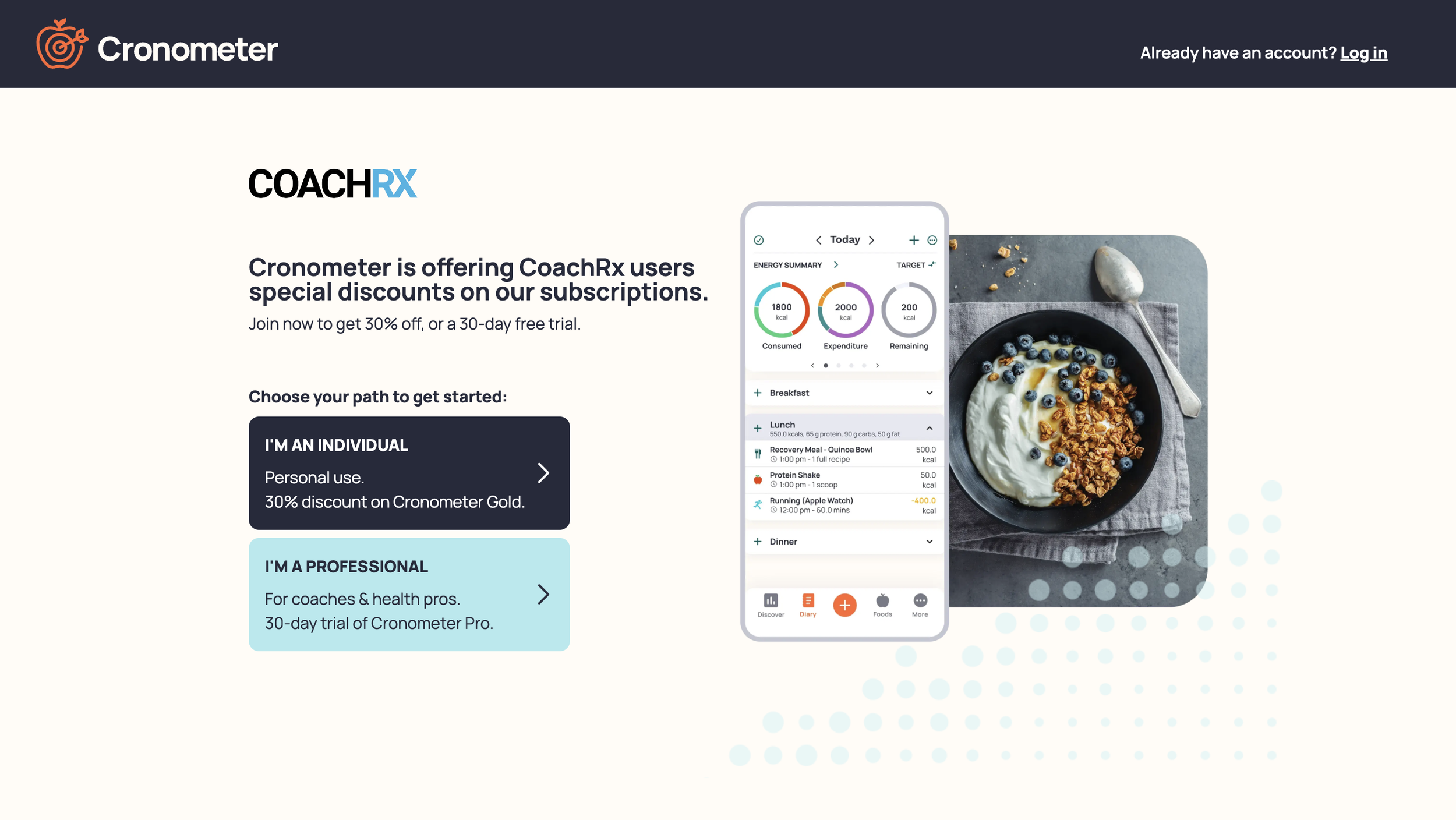
A co-branded Cronometer x OPEX landing page that gives coaches a 30-day free trial of Cronometer Pro with 10 client spaces, plus 30 percent off Cronometer Gold for clients if you choose that route
A reminder that other nutrition apps can still integrate through Apple Health, although data will not be as fast or rich as direct Cronometer integration
Wrapping up: bringing training and nutrition together
Messy food logs and guesswork used to be normal in nutrition coaching. The CoachRx x Cronometer integration gives you a way to replace that with accurate data, clear trends, and simple workflows that clients can actually stick with.
From passive tracking for new clients, to targeted macro prescriptions, to rich nutrition reports, you now have tools that connect training, food, recovery, and lifestyle in one coaching system.
If you want to see everything in action, watch the full community call above, then set up a CoachRx trial and a Cronometer Pro trial through the co-branded page. With a few test clients, you will quickly see how much easier it is to coach when you can trust the data in front of you.